

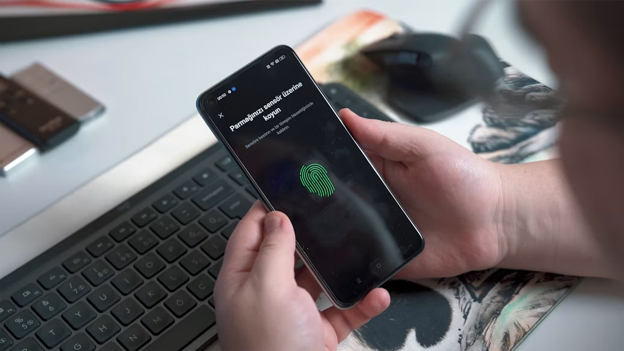
Online identity verification is now a standard part of accessing many services, from opening a bank account to starting a new remote job. New solutions like reusable digital credentials keep emerging to help with this. While this process is crucial for security, it means you have to share sensitive personal documents online. Knowing how to do this safely and effectively protects your information and makes the whole experience smoother.
Understanding Online ID Verification
Online ID verification is simply how a service confirms you are who you say you are. This digital check helps prevent fraud and keeps accounts safe from unauthorized access. The exact methods vary, but they often involve you providing a government-issued photo ID, like a driver’s license or passport. Some platforms might also use biometric data, like a selfie or a short video, to match your face to the photo on your ID.
This whole system relies on your digital identity, which is all the information about you that exists online. By checking a piece of that identity against a trusted physical document, companies can build a basic level of trust. This is especially important for banks, healthcare providers, and any business that handles sensitive user data.
Preparing Your Documents for Digital Submission
One common problem in online verification is a poor-quality image of your ID. A blurry, dark, or cropped photo will almost certainly be rejected by automated systems, leading to delays and frustration. To avoid this, you need to create a clear, high-resolution digital copy.
Start by putting your document on a flat, well-lit surface with a background that contrasts with it. Try to avoid direct overhead lights, which can cause glare on the plastic laminate of an ID card. Your phone’s camera can work in a pinch, but the quality can be inconsistent. A better option is to use a dedicated mobile app designed for this purpose. An all-in-one PDF scanner can help you create perfectly cropped, glare-free digital documents that are easy to read. These apps often include features that automatically detect edges and improve the text, helping ensure your submission meets the platform’s requirements on the first try.
Best Practices for Digital ID Security
Anytime you upload a copy of your ID, you’re trusting a company with very sensitive data. It’s crucial to take steps to protect yourself. First, always confirm that the website or app asking for your information is legitimate. Check that the URL starts with “https://” and look for a clear privacy policy explaining how your data will be stored and protected.
Be extremely careful about unsolicited emails or messages asking for your ID, as these are common phishing tricks. When you do submit your documents, use a secure, private Wi-Fi network, not public Wi-Fi where your data could be more easily intercepted. Following established identity proofing best practices is key to keeping your information safe. Finally, once verification is done, think about whether you need to keep the digital copy of your ID on your device. If you do, make sure it’s stored in a secure, password-protected folder or encrypted vault.
The Convenience of Mobile Document Access
Having secure digital copies of your important documents ready on your mobile device is incredibly convenient. Instead of searching for your physical passport or Social Security card every time you need it, you can access a high-quality scan in seconds. This is especially helpful for time-sensitive tasks, like applying for a loan or finishing onboarding paperwork for a new project.
Modern smartphones offer secure ways to store these files, whether in encrypted notes or dedicated digital wallet apps. Keeping your documents organized and accessible means you can respond to requests from anywhere, making administrative tasks smoother and saving valuable time. This kind of preparation ensures you’re always ready for the next opportunity without getting held back by paperwork.
Troubleshooting Verification Issues
Even with careful preparation, you might run into an issue during verification. If your submission gets rejected, don’t panic. The problem is usually simple to fix. The most common reasons for failure are poor image quality, an expired document, or a mismatch between the information on the ID and the data you typed in.
First, carefully read the error message; it will often tell you exactly what went wrong.
- Blurry or Glare: Retake the photo in better lighting on a flat surface.
- Expired ID: You will need to use a current, valid document.
- Information Mismatch: Double-check that the name, address, and date of birth you typed match your ID exactly, including any middle initials.
If you’ve tried a few times and are still stuck, the best thing to do is contact the company’s support team. They can often review your case manually or give you more specific advice on how to solve the issue.
Managing your digital identity with care is a fundamental skill in today’s professional world. Following these guidelines helps you navigate verification processes securely and efficiently, protecting your data while getting access to the services you need.